If your enterprise is already registered under Udyam, you can download the Udyam Registration Certificate at any time from the Ministry of MSME’s official portal. Banks, buyers, GeM and tender authorities often ask for a copy, and the process is quick once you know which menu to use and which mobile number or email the OTP will go to.
This guide shows how to download and print the certificate, save it as a PDF on a computer or phone, verify an Udyam number, recover a forgotten number and what to check before using the certificate in a tender.
Quick answer
- Open the official portal at udyamregistration.gov.in and select Print/Verify → Print Udyam Certificate.
- Enter your Udyam Registration Number and the mobile number given in the application, choose mobile or email for the OTP, and type the verification code.
- Select Validate & Generate OTP, enter the OTP and select Validate OTP & Login.
- On the dashboard, select Print Certificate, then Print, and choose Save as PDF in the print dialog.
Official Udyam services — these links open the Government of India portal in a new tab.
If the verification link opens the portal’s home page, select Print/Verify → Verify Udyam Registration from the menu.
- Fee
- Nil. The Ministry states that Udyam registration is free.
- Renewal
- Not required, but details should be kept up to date.
- Login
- OTP on the mobile or email given in the application.
In this article
- 1. What You Need Before You Start
- 2. How to Download and Print the Udyam Certificate
- 3. Saving the Certificate on a Phone
- 4. How to Verify an Udyam Registration
- 5. Forgot Your Udyam Registration Number?
- 6. Troubleshooting Common Problems
- 7. What the Certificate Shows
- 8. MSME Classification Limits
- 9. Using the Udyam Certificate in Government Tenders
- 10. Udyam vs Udyog Aadhaar
- 11. Common Mistakes to Avoid
- 12. Frequently Asked Questions
- 13. Related Guides
- 14. About the Author
- 15. Disclaimer
- 16. Official References
1. What You Need Before You Start
- Your 19-character Udyam Registration Number, in the format UDYAM-XX-00-0000000.
- The mobile number entered in the original Udyam application.
- Access to that mobile number or the registered email address to receive the OTP.
- A desktop or mobile browser that can print or save a page as PDF.
2. How to Download and Print the Udyam Certificate
These steps follow the official Udyam portal. The numbered blue markers in each screenshot match the numbers in the text. Select any screenshot to open it at full size.
Open Print Udyam Certificate
Go to the Udyam Registration portal, open the Print/Verify menu (marker 1) and select Print Udyam Certificate (marker 2). The UAM options in the same menu are for old Udyog Aadhaar records, so do not use Print UAM Certificate for an Udyam number.
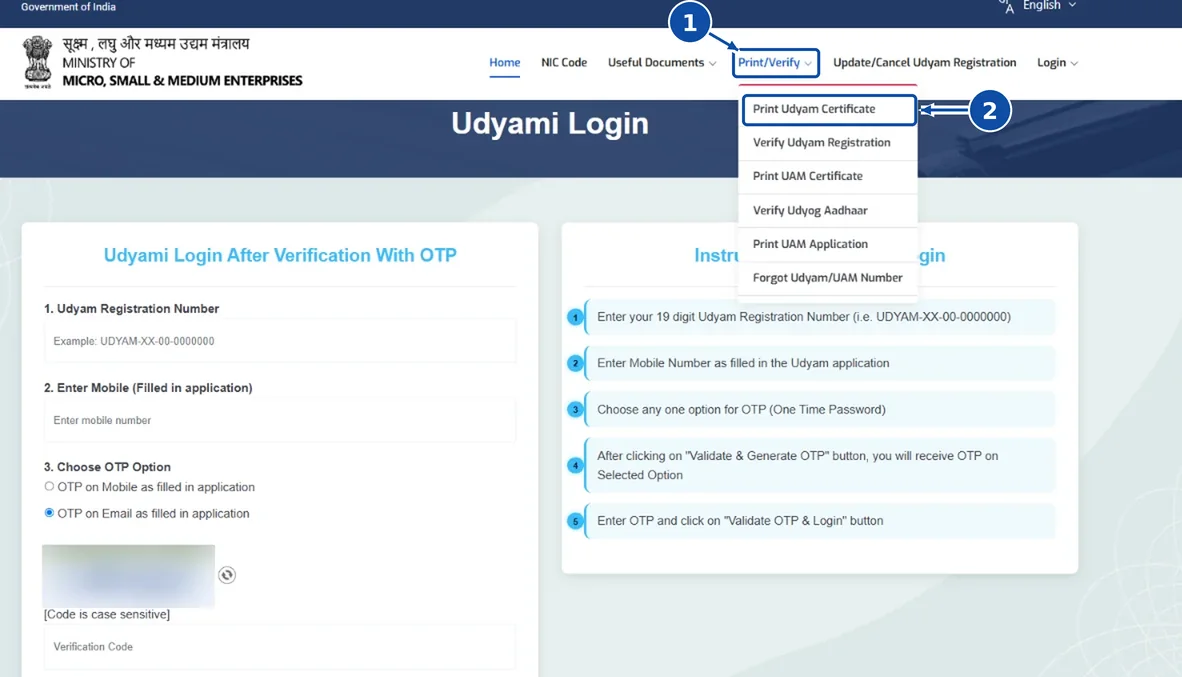
1 Print/Verify menu · 2 Print Udyam Certificate. Enter your registration details
On the Udyami Login page, enter the Udyam Registration Number (marker 1) and the mobile number given in the application (marker 2). Choose whether the OTP should go to that mobile number or to the email given in the application (marker 3), then type the verification code shown in the image (marker 4). The code is case-sensitive.
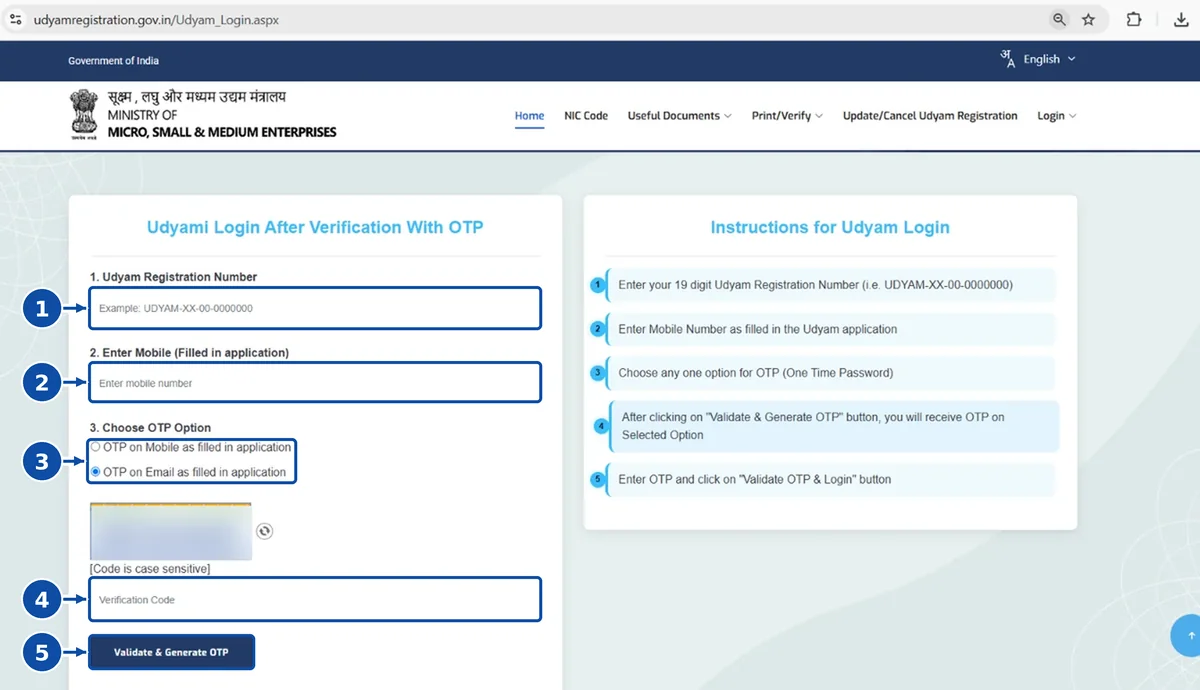
1 Registration number · 2 Mobile number · 3 OTP option · 4 Verification code · 5 Validate & Generate OTP. The verification image is blurred. Generate and enter the OTP
Select Validate & Generate OTP (marker 5 above). Enter the OTP you receive and select Validate OTP & Login. If it does not arrive, check that you chose the right option (mobile or email) and wait a few minutes before asking for a new one.
Select Print Certificate
After login, the Udyam Dashboard Details page shows your registration details. Select Print Certificate at the top right (marker 1). The Edit Details button next to it is for updating the registration, so you do not need it just to download a copy.
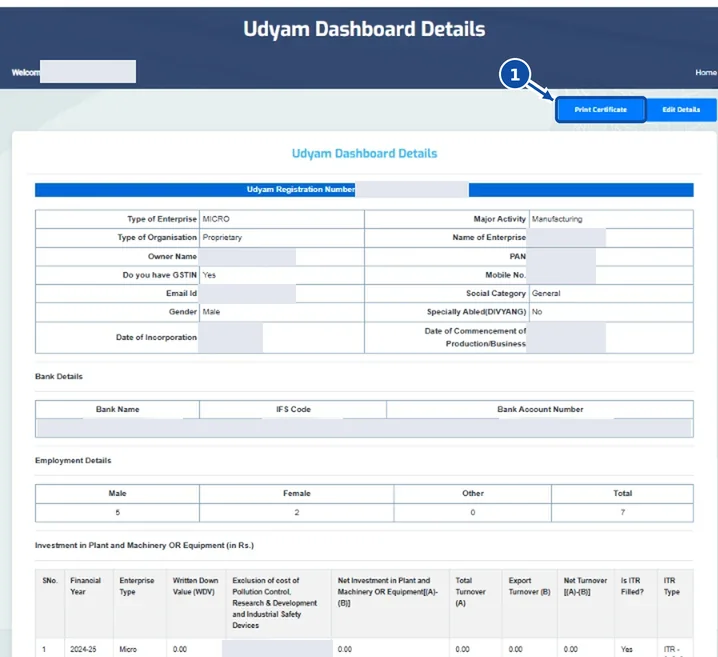
1 Print Certificate. Personal, bank and registration details have been removed. Print or save as PDF
The certificate opens in a print view. Select Print (marker 1) and choose Save as PDF in the print dialog (on Windows you may also see Microsoft Print to PDF). Open the saved file and check that every page, including the QR code, is complete before you send it.
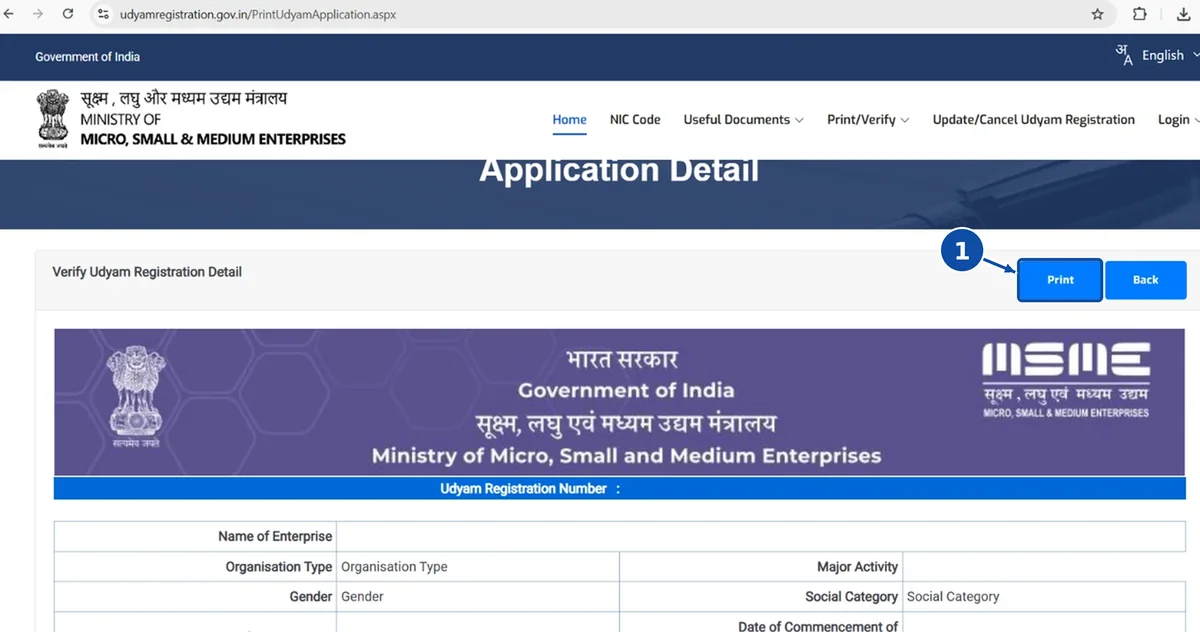
1 Print button on the certificate print view.
3. Saving the Certificate on a Phone
The portal steps above are the same on a phone. Only the final save step depends on your device. The phone steps below are general guidance for the usual browsers: menu names change between phone models, browsers and software versions, and these steps have not been tested on a phone for this guide.
General device steps
Android (Chrome)
- Open the certificate print view on the portal and tap Print.
- On the Android print screen, open the printer list at the top and choose Save as PDF.
- Tap the PDF or download button, choose a folder such as Downloads and tap Save.
- Open the file from Files or Downloads and check every page.
If the portal’s Print button does nothing, Chrome usually offers ⋮ → Share → Print.
General device steps · not tested on an iPhone
iPhone (Safari): Save Your Udyam Certificate as a PDF
- Open the certificate print view on the official Udyam portal in Safari and tap Print.
- On the Print Options screen, open or expand the PDF preview first. Depending on your iOS version, this may mean tapping the page thumbnail or spreading two fingers on it until the full-screen preview appears.
- In the expanded preview, tap Share and choose Save to Files.
- Choose a folder, tap Save, then open the PDF in the Files app and check that all pages are complete.
If this doesn’t work: if no Share option appears, go back to the page, tap Safari’s Share button and choose Print, then repeat steps 2–4. If it still fails, download the certificate from a desktop browser.
If it still does not work:
- Pop-ups blocked: allow pop-ups for udyamregistration.gov.in in your browser settings, then reload the page.
- Page will not load or save properly: try another browser, such as Chrome on Android or Safari on iPhone.
- Layout cut off: switch to the desktop version of the page (in Chrome, ⋮ → Desktop site; in Safari, the aA menu → Request Desktop Website), or use a computer.
4. How to Verify an Udyam Registration
Downloading gives you a copy of the certificate. Verification checks that an Udyam number exists on the government record. Buyers and tender committees often use it to check a supplier, and you can use it to check a certificate someone has given you.
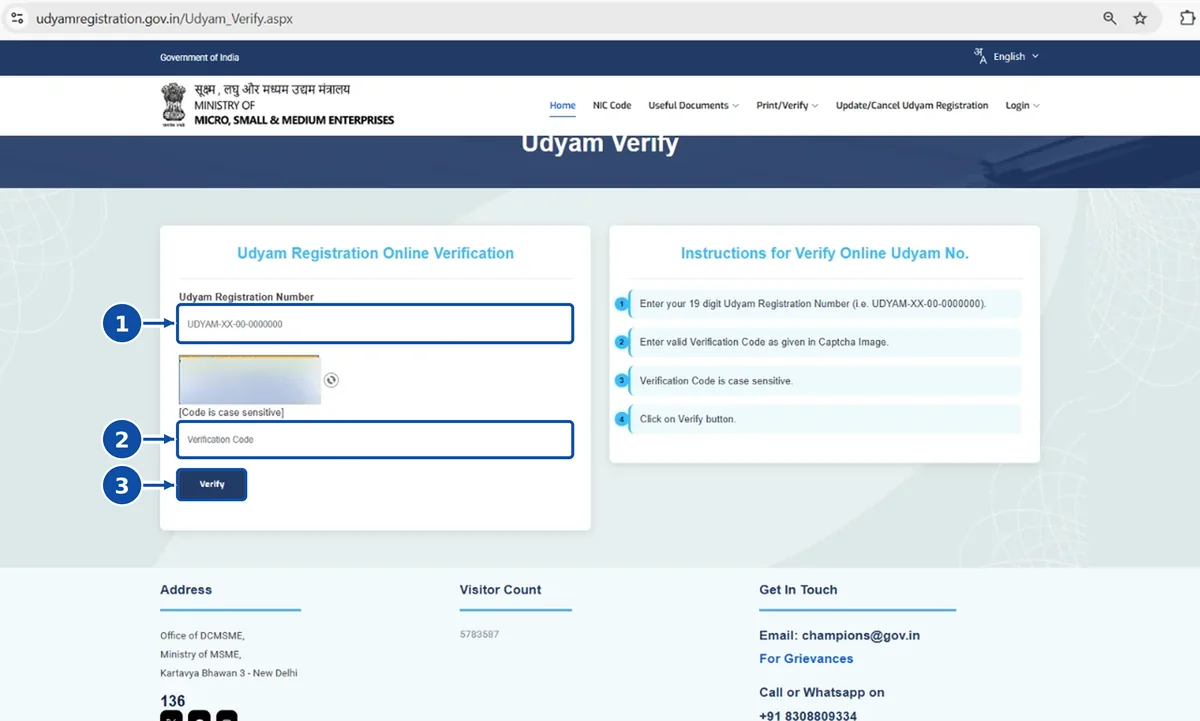
On the official portal, select Print/Verify → Verify Udyam Registration. Enter the Udyam Registration Number (marker 1) and the verification code (marker 2), then select Verify (marker 3). Compare the details shown with the certificate you have. No OTP is needed.
According to the Ministry, the certificate carries a dynamic QR code that opens the enterprise’s page on the Udyam portal. If you scan one, make sure the page that opens is on udyamregistration.gov.in. A screenshot or a typed number on its own does not prove a certificate is genuine.
5. Forgot Your Udyam Registration Number?
Use the official Forgot Udyam/UAM Number page:
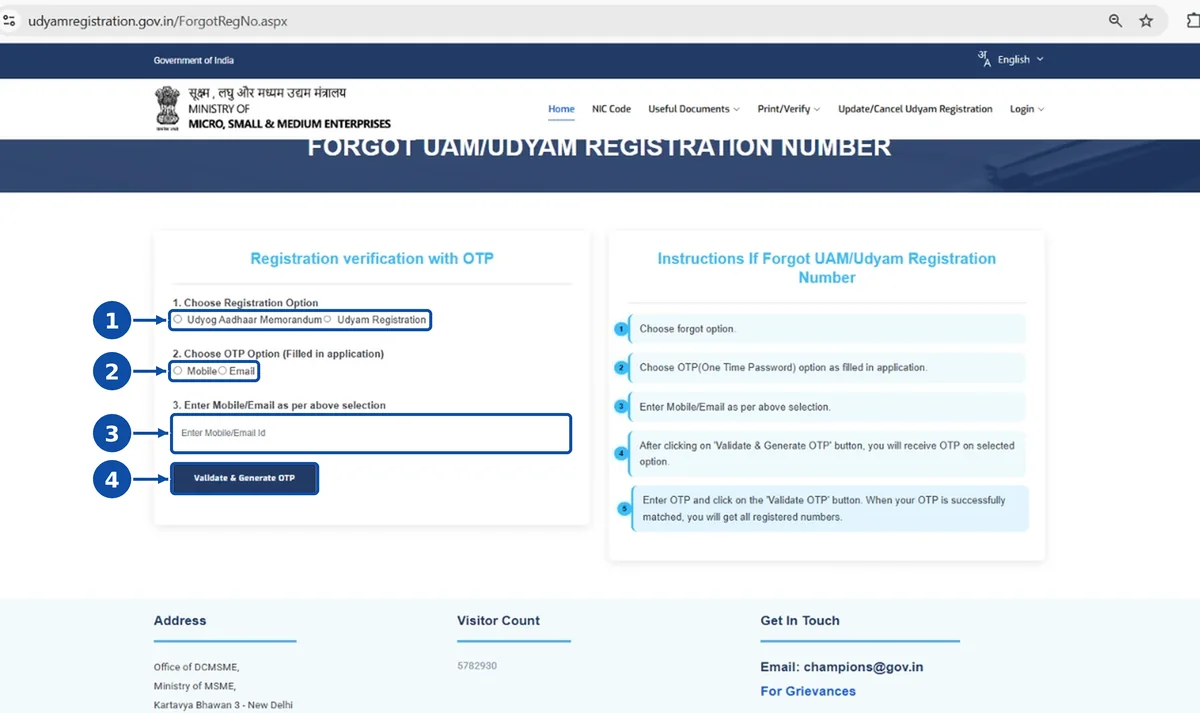
- Choose Udyam Registration, or Udyog Aadhaar Memorandum for an old UAM (marker 1).
- Choose whether the OTP should go to the mobile number or the email given in the application (marker 2), and enter it (marker 3).
- Select Validate & Generate OTP (marker 4), enter the OTP and select Validate OTP. According to the portal, once the OTP matches you will get all registration numbers linked to that mobile number or email. If the screen looks different, follow the on-screen instructions.
You may also find the number on older papers where you used it, such as a bank loan file, your GeM seller profile or a past tender. If you can no longer access either the registered mobile number or email, do not pay anyone who offers an “OTP bypass”. Raise the issue on the Ministry’s MSME Champions grievance portal.
6. Troubleshooting Common Problems
Select your problem to see the likely reasons, what to try and the right official service. Nothing you select is sent or stored.
Select a problem above to see the suggested steps.
Forgot registration number
Likely reasons
- The certificate or registration email has been misplaced.
- The enterprise holds an old Udyog Aadhaar number, not an Udyam number.
What to try
- Use the forgotten-number service with the mobile or email given in the application.
- Check old bank, GeM or tender documents where the number may appear.
OTP not received
Likely reasons
- The mobile number entered differs from the one in the application.
- The OTP was sent to the other channel (mobile instead of email, or the reverse).
- SMS or email delays, or the email went to spam.
What to try
- Re-enter the exact mobile number given in the application.
- Try the other OTP option on the login page.
- Wait a few minutes before requesting a new OTP.
Registered mobile number changed
Likely reasons
- The old number is no longer in use, so OTPs cannot be received on it.
What to try
- Choose the email OTP option if you still have access to the registered email.
- After logging in, open Edit Details to check whether the contact details can be updated.
- If neither the mobile nor the email is accessible, seek help through the official grievance portal.
Incorrect certificate details
Likely reasons
- Information was entered incorrectly during registration.
- Business details such as address, activity or NIC codes have changed.
What to try
- Do not edit the PDF. An altered certificate is not valid.
- Log in and use Edit Details to update the registration, then download a fresh certificate.
- Investment and turnover figures are taken from PAN and GST-linked records, so errors there may need to be corrected at the source.
Unable to save the PDF
Likely reasons
- Pop-ups are blocked, or the page had not finished loading.
- The mobile browser has no Save as PDF option.
What to try
- Allow pop-ups for udyamregistration.gov.in and wait for the full certificate to load.
- Use Save as PDF in the print dialog instead of a physical printer.
- Try another browser or a desktop computer.
Old Udyog Aadhaar registration
Likely reasons
- The enterprise was registered under the older Udyog Aadhaar Memorandum (UAM) system.
What to try
- A UAM number is not an Udyam number. The Ministry requires UAM holders to register again on the Udyam portal.
- Use the portal’s option for those already holding a Udyog Aadhaar registration.
7. What the Certificate Shows
The Udyam Registration Certificate typically shows:
- Udyam Registration Number and name of the enterprise
- Type of enterprise (micro, small or medium) for each classification year, with classification dates
- Major activity (manufacturing or services) and social category of the entrepreneur
- Name of unit(s) and the official address of the enterprise
- Dates of incorporation, commencement of business and Udyam registration
- National Industry Classification (NIC) codes for the activities registered
- The District Industries Centre and MSME office for the enterprise, and a QR code
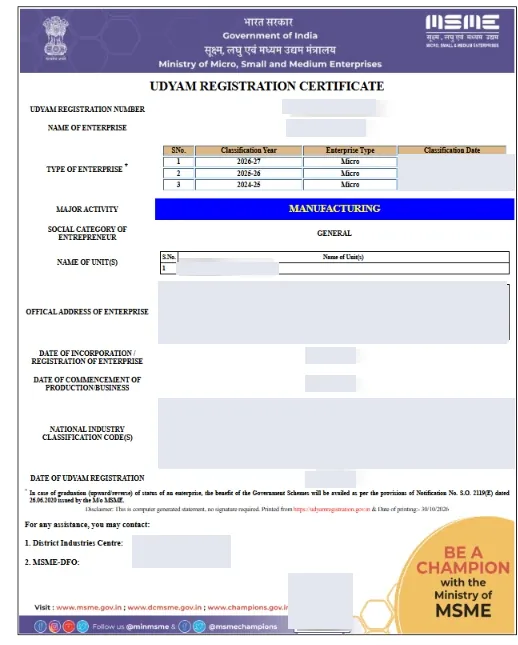
Before using the certificate for a loan, tender or GeM, check that the current-year enterprise type, the activity and the NIC codes match the work you do. The certificate also refers to Notification S.O. 2119(E) dated 26.06.2020, which sets out how scheme benefits apply when an enterprise moves to a different category.
8. MSME Classification Limits
Enterprises are classified using both investment in plant and machinery or equipment and annual turnover. The limits revised with effect from 1 April 2025 are:
| Category | Investment up to | Turnover up to |
|---|---|---|
| Micro | ₹2.5 crore | ₹10 crore |
| Small | ₹25 crore | ₹100 crore |
| Medium | ₹125 crore | ₹500 crore |
Swipe or scroll the table horizontally to read all columns.
Investment and turnover figures are taken from PAN and GST-linked government records. The classification shown on your certificate and dashboard is the one that applies to your enterprise.
9. Using the Udyam Certificate in Government Tenders
The Udyam certificate is your proof of MSME status in a tender. On its own, it does not make you eligible for a bid or guarantee any benefit.
Benefits for micro and small enterprises (MSEs) come from the Public Procurement Policy for MSEs Order, 2012, which applies to central Ministries, Departments and public sector undertakings. It sets a target of at least 25% of annual procurement from MSEs and provides free tender sets, EMD exemption and, in some cases, the option for an MSE quoting within L1+15% to supply part of the order. The policy covers goods made and services provided by MSEs. Medium enterprises and traders are not covered, and state governments may follow their own procurement policies.
For selling to government buyers, see our GeM registration guide. If you need help with bid paperwork, our tender documentation service covers document preparation.
10. Udyam vs Udyog Aadhaar
Udyog Aadhaar Memorandum (UAM) was the earlier MSME registration system. The Ministry requires enterprises registered under EM Part-II or UAM to register again on the Udyam portal, so an old UAM certificate does not replace an Udyam certificate. That is why the Print/Verify menu has separate options for UAM records. If you are not yet registered, see our Udyam registration service.
11. Common Mistakes to Avoid
- Using an unofficial “Udyam certificate” website that charges a fee or asks for an OTP.
- Selecting Print UAM Certificate instead of Print Udyam Certificate.
- Submitting an old copy of the certificate when the classification or activity has since changed.
- Editing the PDF to correct a detail instead of updating the registration on the portal.
- Assuming that the certificate alone guarantees EMD exemption, purchase preference or bid eligibility.
- Posting the certificate publicly. It shows your enterprise address and registration number.
To understand what the registration can do for your business, read 7 real benefits of Udyam (MSME) registration.
12. Frequently Asked Questions
Is downloading the Udyam certificate free?
Yes. The Ministry states that Udyam registration is free, and you can print the certificate from the official portal without paying anyone.
Does the Udyam certificate expire?
No. The Ministry states that registration does not need renewal. However, the enterprise’s details should be updated when they change.
Can I download the certificate without the registration number?
Not directly. First recover the number through the official forgotten-number service using the registered mobile number or email.
Do I need an OTP to verify someone else’s Udyam number?
No. The Verify Udyam Registration page only asks for the registration number and the verification code.
Can a company or LLP register under Udyam?
Yes. In the case of a company, LLP, cooperative society, society or trust, the Ministry requires the organisation or its authorised signatory to provide its GSTIN and PAN along with the Aadhaar number. If your business still needs GST registration, see how to register for GST online.
Is Udyam registration mandatory for selling on GeM?
No. GeM lists MSE details as optional during seller registration. Udyam registration is needed if you want to claim MSE benefits in eligible bids, subject to the bid conditions.
What should I do if the details on my certificate are wrong?
Do not alter the downloaded file. Log in to the portal, update the details through Edit Details and download a new certificate.
15. Disclaimer
Tax & Tenders is an independent information website and is not affiliated with the Ministry of MSME or any government portal. This article is general guidance based on the portal and official information available on the date of review; it is not an official certificate service and does not guarantee eligibility for any benefit. Portal screens and procedures may change. Screenshots are from the official Udyam Registration portal, with personal and enterprise details removed.
16. Official References
- Udyam Registration portal – Ministry of MSME
- Udyami Login – Print Udyam Certificate
- Verify Udyam Registration
- Forgot Udyam/UAM Registration Number
- Udyam Registration – Important to Know
- MSME Champions – grievance and support portal
- Public Procurement Policy for Micro and Small Enterprises Order, 2012 (Office of DC-MSME)
- Office of DC-MSME – FAQs on Public Procurement Policy for MSEs
- GeM – Seller registration prerequisites
Portal menus and procedures should be checked on the official website before being relied on for a particular case.